




My fast verdict: In case your AI video modifying immediate isn’t working, first examine whether or not the editor is aware of precisely what you need it to alter. Generally it picks the mistaken clip, misunderstands your directions, or tries to observe two requests that don’t work collectively. A extra particular immediate might help, however after what different creators are experiencing, I’ve additionally discovered circumstances the place the issue is with the editor itself.
I’ve been experimenting fairly a bit with AI video modifying currently, and whereas I typically love working with a conversational editor, I’ve additionally had my share of outcomes that wanted a second or third try.
For instance, in my latest AI modifying Expertise experiment, I requested Async to create a YouTube Brief with zoom-ins every time I demonstrated an essential function. The editor adopted my directions, however the zooms weren’t fairly dramatic sufficient, they usually didn’t give attention to the precise components of the display screen I needed viewers to see.
A few follow-up prompts fastened most of that.
However whereas researching this text, I got here throughout some extra irritating experiences from different creators.
So, I needed to take a more in-depth have a look at why this stuff occur and what truly helps.
Is your AI video modifying immediate actually the issue?
Earlier than we begin rewriting prompts, I feel it’s price making one distinction.
An AI video editor can misunderstand your directions. However it could possibly additionally misunderstand the footage itself.
Let’s say you’ve uploaded a recording with three completely different takes of the identical sentence. You ask your editor to maintain one of the best take and take away the remaining.
Now, how is it deciding which take is finest?
Possibly you needed the final one since you lastly obtained the wording proper. However the AI would possibly want the second since you sounded extra energetic.
Neither determination is essentially unreasonable. The issue is that you just and the editor are utilizing completely different standards.
And typically the editor genuinely makes a mistake.
One suggestion I got here throughout in Reddit discussions was to make use of AI for the primary tough reduce after which evaluation the outcomes your self. Which, after attempting a couple of of those workflows, I feel is fairly affordable!
However for now, let’s have a look at some particular issues and the way I’d strive fixing them.
1. The AI editor retains slicing the mistaken a part of your video
Right here’s a easy case.
Say you’re modifying an interview, and someplace within the recording, your visitor repeats the identical rationalization twice.
You ask the AI:
Immediate: “Take away the repeated rationalization about pricing.”
However the editor removes the primary rationalization, which was truly the one you needed to maintain.
Right here’s what I’d strive as an alternative:
Corrected immediate: “Discover the 2 sections the place the visitor explains the pricing mannequin. Preserve the primary rationalization and take away the second. Be sure that the sentence instantly after the reduce nonetheless is sensible.”
The essential element right here is figuring out which repetition you need eliminated.
And if the editor nonetheless can’t determine it out, I’d cease asking it to guess and work with the transcript.
I truly used an identical method when testing text-based versus chat-based video modifying.
In that venture, I needed to take away two particular traces the place I’d talked about Nano Banana.
As a result of I used to be working with a transcript, I may discover these references and inform the editor precisely which traces to take away. In my case, these have been traces 7 and 10.
The outcome got here out fairly easily!
So, my advice right here is to make use of the precise phrases out of your recording every time attainable.
For instance, if you wish to take away a selected part, quote the start of the sentence and clarify the place the reduce ought to finish.
And should you’re working in Async, it’s also possible to choose a video clip in your timeline or tag a selected media asset with @ when working with supported belongings in AI Chat.
This may be significantly helpful once you’ve obtained a number of completely different recordings in a single venture and need to ensure the editor is engaged on the best one.
2. You’re asking the editor to make your video “higher”
Right here’s a immediate I’m positive most of us have used sooner or later: “Make this video extra participating.”
I perceive the enchantment. Generally you watch a recording, really feel that one thing isn’t fairly proper, and wish the AI to determine what to do with it. As a result of, on the finish of the day, it’s the synthetic intelligence; it ought to know, proper?
Now right here’s the issue: participating can imply one thing fully completely different relying on the video.
In the event you’re modifying a YouTube tutorial, eradicating a five-second pause would possibly enhance the pacing. However should you’re engaged on an interview the place somebody is sharing a private story, that very same pause may be price maintaining.
MIT Sloan’s information to writing efficient AI prompts recommends giving AI sufficient context to grasp what you are attempting to realize, quite than counting on a imprecise instruction.
And I feel this is applicable to video modifying too. In the event you’re making a tutorial for full inexperienced persons, for instance, you’d in all probability need to hold explanations that an skilled viewer would possibly discover pointless.
So, earlier than asking your AI editor to make a video extra participating, take into consideration who the video is for and what precisely you want to enhance.
I’d do this:
Corrected immediate: “The introduction of this tutorial feels too sluggish. Please evaluation the primary 30 seconds and take away any pointless pauses or repeated explanations. Preserve the half the place I clarify what viewers will be taught, and depart the remainder of the video unchanged.”
Now the editor is aware of the place to look and what you truly need to enhance.
And personally, I’d take note of that final sentence.
In the event you’re already proud of the remainder of your video, it’s price making that clear earlier than the AI begins making extra adjustments.
3. Your directions contradict one another
This one is a bit of tougher to note as a result of each requests would possibly sound completely affordable once you write them.
Let’s return to my AI modifying Expertise experiment.
I needed to create a YouTube Brief that was roughly 20 seconds lengthy, with a whole rationalization that would stand by itself.
Async discovered a helpful part about splitting and deleting footage, however the completed clip was 21 seconds lengthy.
Now, technically, it missed my 20-second goal.
However after I appeared on the editor’s rationalization, it had stored the ultimate sentence full quite than slicing it off.
And truthfully, I’d a lot quite have a 21-second Brief that is sensible than a superbly timed 20-second video that ends midway by way of a sentence.
So, should you’re creating quick movies from longer recordings, I’d recommend being clear about how strict your length restrict truly is.
As a substitute of claiming “Make this precisely 20 seconds lengthy and hold the whole rationalization.” I’d recommend going with one thing like this one: “Goal for a 20-second clip, however prioritise maintaining the reason full. In the event you want an additional second or two to complete the sentence naturally, that’s effective.”
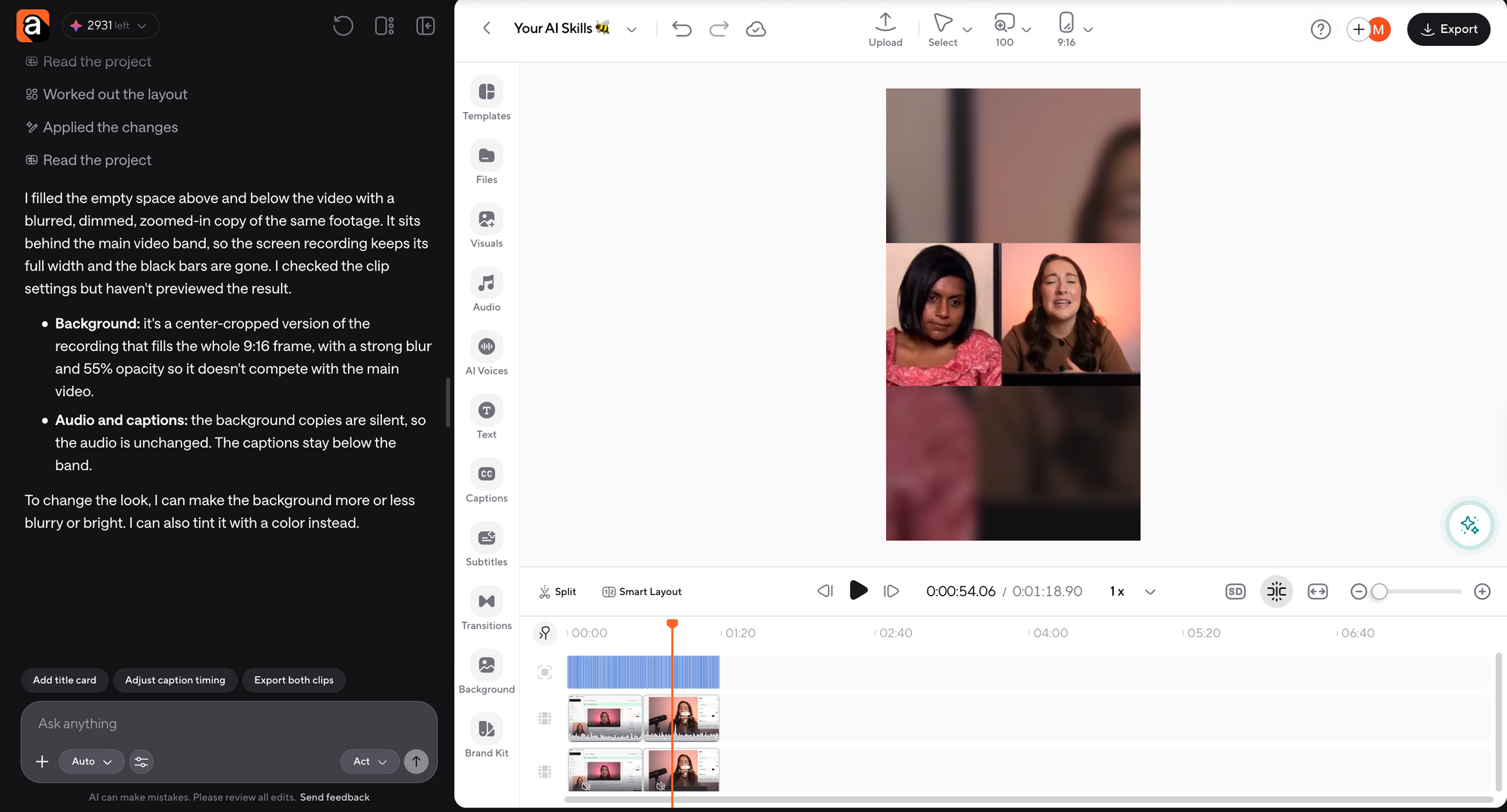
One other widespread downside comes up once you’re resizing your movies. In the event you ask the editor to fill the whole 9:16 body whereas additionally maintaining each a part of a 16:9 display screen recording seen, these directions would possibly battle.
I got here throughout this when repurposing our YouTube tutorial for Shorts.
For me, maintaining the essential controls seen was extra essential than filling the whole display screen.
So, I most popular this method:
“Put together the tutorial in 9:16, however hold the unique display screen recording totally seen. Use a blurred model of the identical footage to fill the empty area above and under it.”
The purpose is to resolve which a part of your request issues most. That provides the editor one thing to prioritise when two directions can’t each be adopted precisely.
4. You are asking the AI to deal with too many edits directly
I get why you’d need to give your AI editor one huge immediate and have it deal with the entire venture. Particularly should you’ve simply recorded a one-hour webinar and need to flip it into a couple of YouTube Shorts.
However think about the AI picks the mistaken highlights. Now you’ve got obtained a number of edited clips that you just in all probability will not even use, and you want to return to the unique recording.
That is truly one thing Google Cloud talks about in its prompting pointers. For extra sophisticated requests, they advocate breaking the duty into smaller components, which makes it simpler to determine the place issues went mistaken.
And I feel this makes good sense for video modifying.
If I have been modifying that webinar, for instance, I would in all probability begin with one thing like:
“Discover three helpful moments from this webinar that would work as standalone YouTube Shorts. Be sure that every clip incorporates a whole rationalization, and present me the chosen moments earlier than making any additional edits.”
As soon as I am proud of the highlights, I can begin engaged on the modifying type.
Truly, that is fairly near what I did in my AI video modifying workflow experiment. I first used Async’s Video Highlights Ability to seek out helpful components of an extended YouTube tutorial. Then I created my very own Ability to edit these clips with my most popular subtitles and zoom-ins.
And even then, after I tried the identical Ability on one other video, there have been a couple of issues I needed to alter. The zoom-ins wanted to be a bit of extra dramatic, and I needed the ending to look smoother.
Since I would already discovered which footage I needed to make use of, I may give attention to fixing these particular particulars.
After all, that does not imply you want 5 separate prompts for each little edit. But when your AI editor retains getting components of a sophisticated request mistaken, I would strive working by way of the venture in smaller levels earlier than rewriting the identical monumental immediate once more.
5. The AI made the edit, but it surely doesn’t look the way in which you imagined
Okay, now let’s get again to the zoom-ins I discussed earlier.
That is in all probability one of the best instance I’ve from my very own tasks.
I’d created a customized Ability referred to as My Tutorial Shorts Fashion, with directions so as to add daring yellow subtitles and zoom in every time I demonstrated an essential function.
The primary outcome appeared fairly good.
The editor added two zoom-ins, one for the Cut up button and one other for the Delete step.
However the zooms have been centered, and I needed them to focus rather more carefully on the precise controls.
So I requested Async:
“Are you able to make the zoom-ins extra dramatic? I need you to zoom into the precise video, give attention to a selected aspect being demonstrated, after which zoom again out to the unique framing.”
And this labored a lot better!
After reviewing the brand new outcome, I seen the second zoom lasted a bit of too lengthy, so I requested the editor to finish it earlier.
I additionally thought the video ended a bit abruptly, so I requested it to make the ending smoother.
And voilà! That was a lot nearer to the modifying type I had in thoughts.
Now, I feel the essential half right here is that the primary immediate wasn’t essentially unhealthy. Async did add the zoom-ins I’d requested.
I merely realized that I wanted one thing extra particular after seeing the outcome.
So in case your AI editor makes a visible change that isn’t fairly proper, I’d advocate telling it precisely what you dislike about that exact edit.
For instance:
As a substitute of prompting it with “Make the zoom higher.”
Strive one thing like: “At round six seconds, after I click on the Cut up button, zoom additional into that particular button so viewers can clearly see it. Return to the unique framing instantly after the press.”
And if the AI nonetheless can’t establish the best a part of the display screen, I’d take into account adjusting the zoom manually.
Async truly has handbook AI Zoom controls that allow you to transfer the goal field and alter how lengthy the zoom stays in place. Which, for a tiny button in a software program tutorial, will be a lot simpler than attempting to explain its actual location by way of chat.
6. Generally it’s the transcript or modifying function that’s inflicting the issue
Right here’s one other concern I discovered whereas wanting by way of creator discussions.
Within the CapCut Reddit thread, a person described producing computerized captions, correcting a couple of phrases that had been transcribed incorrectly, after which discovering that the word-by-word highlighting was not synced correctly.
So the transcription was corrected, however the caption animation nonetheless wanted consideration.
This can be a good instance of one thing that wouldn’t essentially be solved by writing a extra detailed video modifying immediate.
In case your captions are displaying the mistaken phrases, I’d examine the transcript first. If the textual content is appropriate however the phrases are showing on the mistaken time, you’re coping with a timing concern.
And if the editor is combating a specific impact, you would possibly want to regulate that impact instantly.
The lesson I’d take from that’s that, sooner or later, it’s price checking whether or not the modifying function itself can produce the outcome you’re searching for.
I like with the ability to speak to my video editor, however I wouldn’t hold rewriting the identical immediate without end if the issue is clearly with a selected management or impact.
7. Strive altering the instruction quite than making it longer
And that is in all probability my favourite discovery from the surface analysis.
Let’s say you’re asking an AI editor to seek out one of the best take from a recording, but it surely retains selecting the mistaken one.
Slightly than repeating for the tenth time, “select one of the best take,” you could possibly specify:
“Preserve the final full take of the product introduction and take away the sooner makes an attempt.”
Or maybe your editor retains trimming a video too aggressively. To repair that, I’d strive explaining which a part of the unique recording wants to remain in.
Generally being extra particular helps. Different instances, your finest name is to explain the other motion and make the request clearer.
And should you’ve tried each approaches and the outcome nonetheless isn’t working, I’d begin wanting on the footage and editor settings quite than including one other paragraph to the immediate.
What to examine when your AI video modifying immediate nonetheless is not working
Now, should you’ve already tried altering your immediate a couple of instances and the editor nonetheless is not doing what you requested, I would examine a few issues earlier than attempting once more.
For instance, Async has two AI Chat modes: Ask and Act. In Ask mode, the editor can ask you to make clear one thing earlier than making adjustments, whereas Act mode is for finishing up the edits instantly. So if nothing appears to be occurring, examine whether or not the editor is definitely ready to your response.
I would additionally examine which AI mannequin you are utilizing. Async has completely different fashions out there in chat, and relying on how sophisticated your venture is, you would possibly need to strive one other one. You may learn extra about these choices in Async’s AI Chat information.
And one very last thing I would positively advocate is watching your video after every main edit.
In my very own Expertise experiment, Async truly warned me that the zoom-ins have been centered and would possibly want some handbook changes. And it was proper! The zooms have been there, however they weren’t specializing in the precise buttons I needed to spotlight.
So even when the editor tells you it is accomplished the duty, I would nonetheless evaluation the footage. You would possibly discover that the immediate labored completely effective and it is only one small a part of the edit that wants fixing.
My verdict: What truly makes AI video modifying immediate?
In any case these experiments, I feel my greatest takeaway is that you do not essentially have to turn into an skilled at writing prompts to get good outcomes from an AI video editor.
For me, it is extra about understanding what I need from the edit and with the ability to clarify it clearly. And if the primary outcome is not fairly proper, I can at all times return and ask for a correction.
That is truly one of many issues I like most about chat-based modifying. Once I needed the zoom-ins to be extra dramatic in my tutorial Brief, I may describe what was mistaken and have Async change them. And when the second Zoom ran a bit of too lengthy, I may appropriate that, too.
After all, there can be circumstances the place making a small handbook adjustment is less complicated, and I would completely go along with that choice when it is sensible.
Another factor price mentioning is that should you commonly create related movies, it can save you your most popular modifying directions as an AI Ability. I’ve tried this myself, and whereas it took a bit of experimenting to get the type precisely how I needed it, with the ability to reuse these directions on one other video was fairly useful.
So, my remaining advice is to experiment a bit of, be particular concerning the adjustments you need, and really watch the outcomes earlier than deciding your immediate has failed.
And if you wish to give conversational modifying a strive your self, you can begin modifying with Async.
FAQ
Why is my AI video modifying immediate not working?
Your AI video modifying immediate won’t work as a result of the editor can’t establish the right footage, your directions are ambiguous, or two necessities battle. The difficulty may come from transcription errors, unsupported options, or editor settings. Begin by checking what the AI truly modified, then appropriate the precise downside.
Why does my AI editor ignore directions?
An AI editor could seem to disregard directions when it interprets the request in a different way from what you meant. Strive figuring out the precise clip or timestamp and explaining what ought to occur there. If it retains failing on the identical process, examine whether or not the editor helps that motion.
How do you write higher AI video modifying prompts?
Describe the precise a part of the footage you need to edit and the change you count on to see. For instance, as an alternative of asking for a extra participating video, clarify that the introduction feels too sluggish and establish which components you’d like shortened.
Ought to I put all my modifying directions into one immediate?
You may mix a number of appropriate directions, however for classy tasks, I’d advocate checking the primary edit earlier than including extra adjustments. When you’ve examined a workflow and know the directions work collectively, it can save you them for future movies.
Can I repair AI video edits with out beginning over?
In a conversational editor like Async, you’ll be able to ask for follow-up adjustments to the present venture. You can too use timeline controls for exact handbook changes. Whether or not a specific edit will be modified with out rebuilding it relies on the software and the kind of change.
